PanelGetting started
Approving a kcloud sign-in
kcloud login does not ask for your password. It shows a code in the terminal and opens the panel, and you approve the sign-in in the browser where you are already signed in.
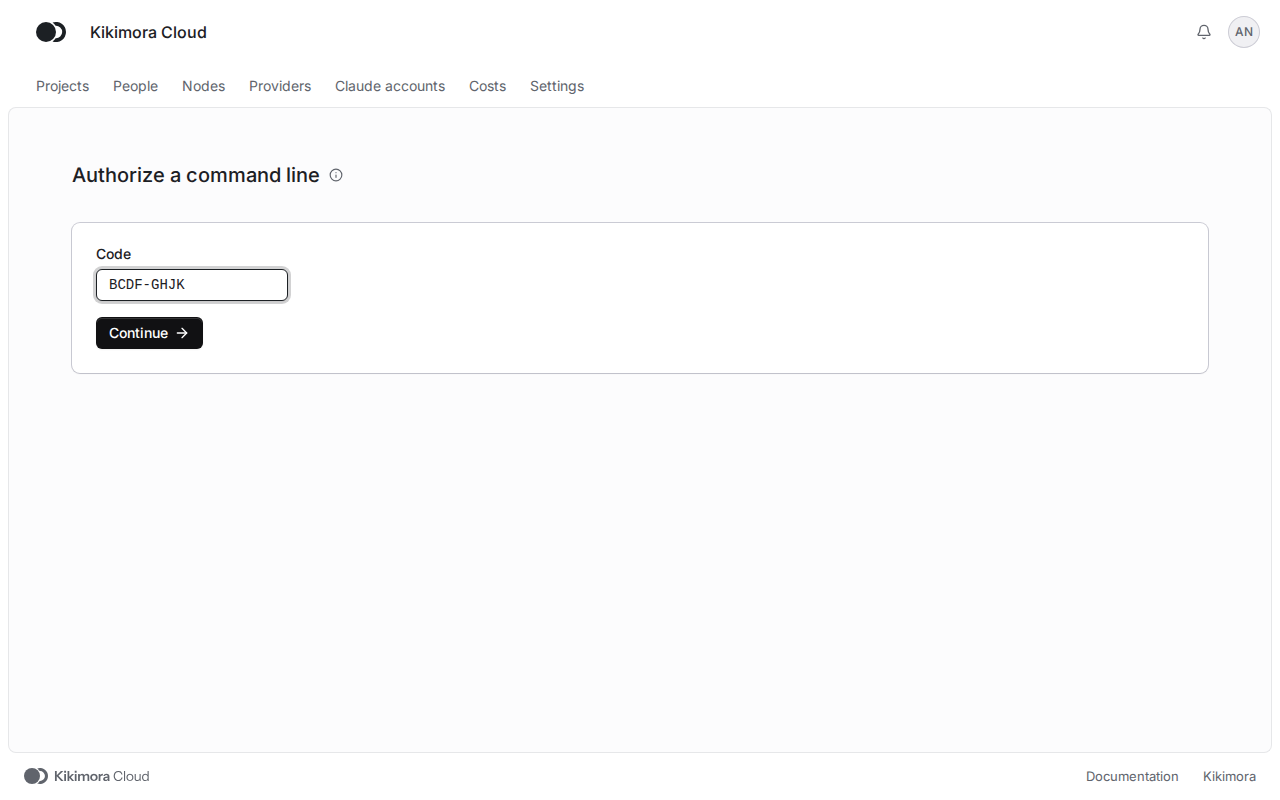
Run kcloud login in a terminal. The command prints a code, such as BCDF-GHJK, and the address of the page, then waits for the approval. The code expires after ten minutes.
Step 1: Type the code if needed
Usually kcloud opens the page with the code filled in. If no browser opened, go to the address from the terminal, type the Code and click Continue.
Step 2: Check the request
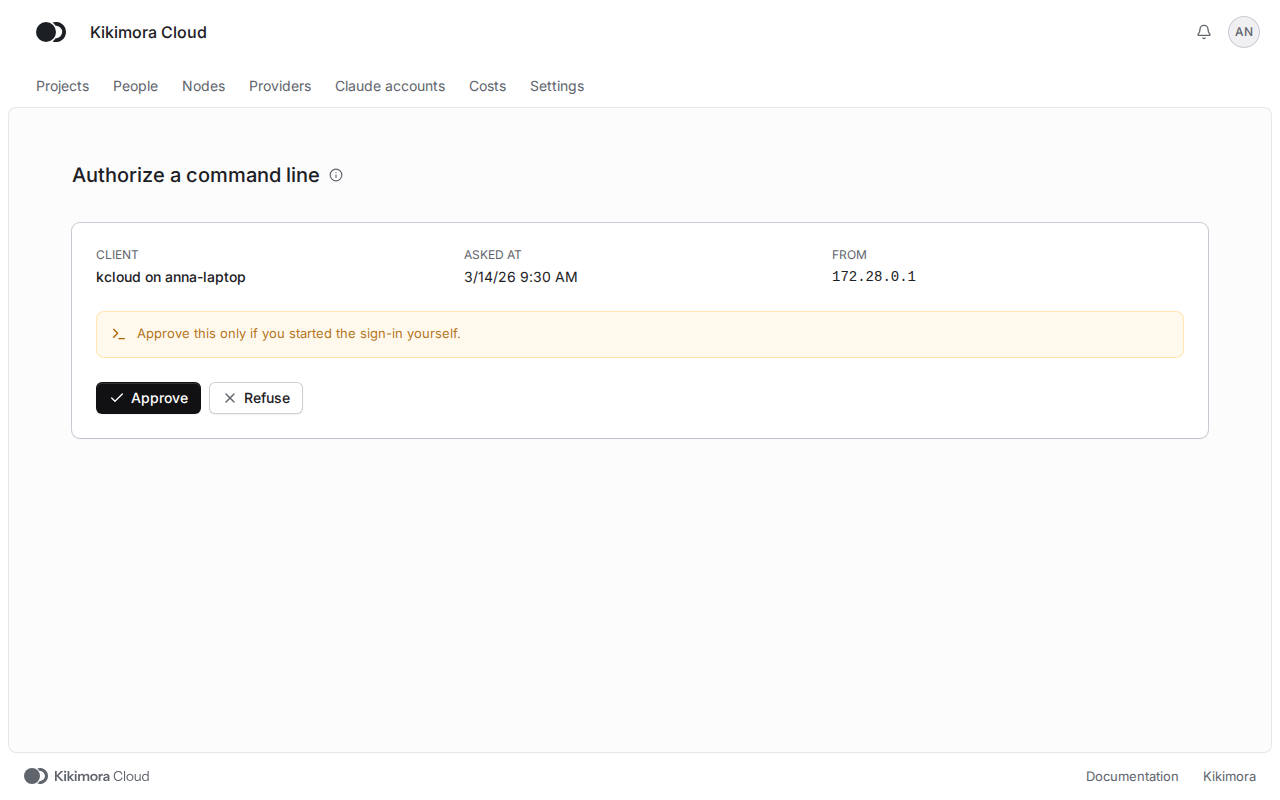
The page shows the Client, that is kcloud and the name of the computer, the time of the request and the address it came from. Compare the code with the one in the terminal. Approve only a sign-in you started yourself.
Step 3: Approve or refuse
Click Approve and go back to the terminal: kcloud picks the token up and saves it on its own. Refuse ends the sign-in without a token, and kcloud says it was refused.
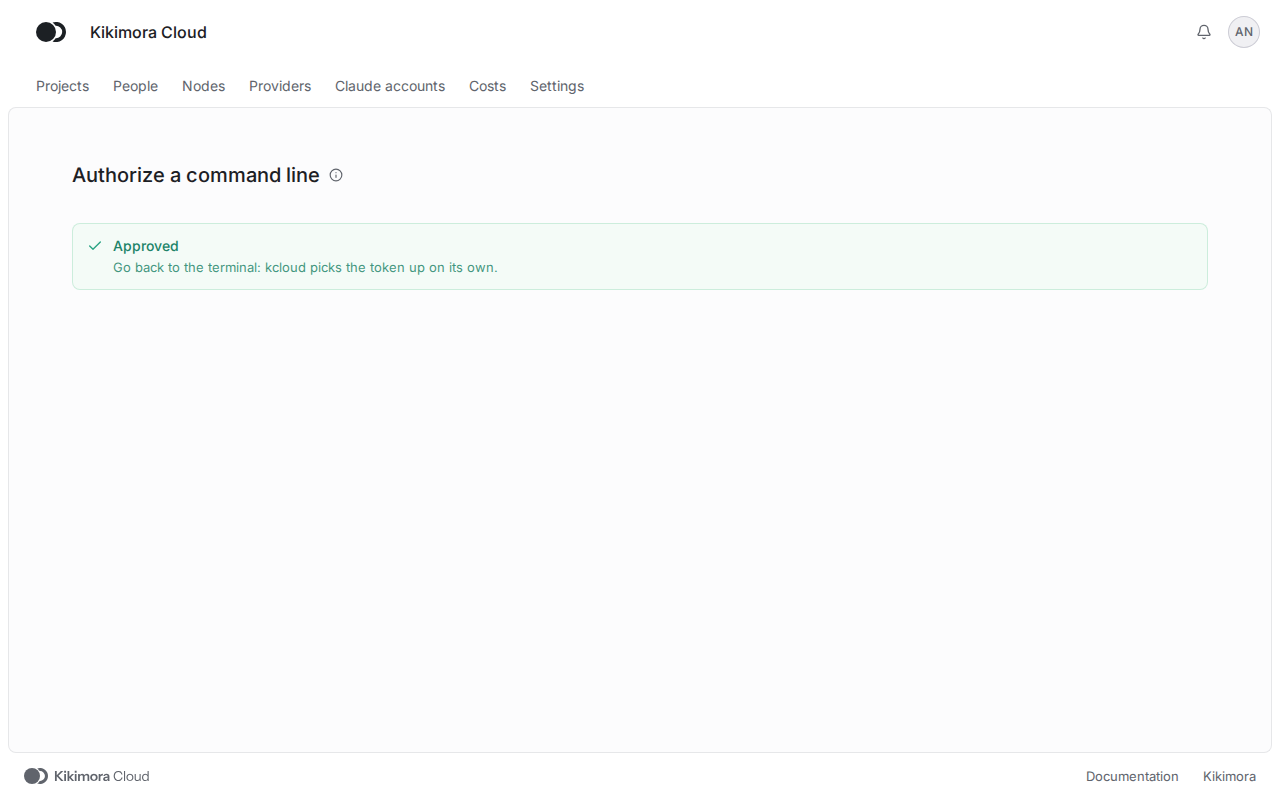
The token that kcloud collects then shows on the Access tokens page, where you can also revoke it.
Matches the panel at cloud.kikimora.dev.