PanelOrganization
People
The People tab holds the accounts of everyone in the organization. An organization admin creates accounts here, grants the administrator role, resets passwords and disables accounts.
Step 1: Open People
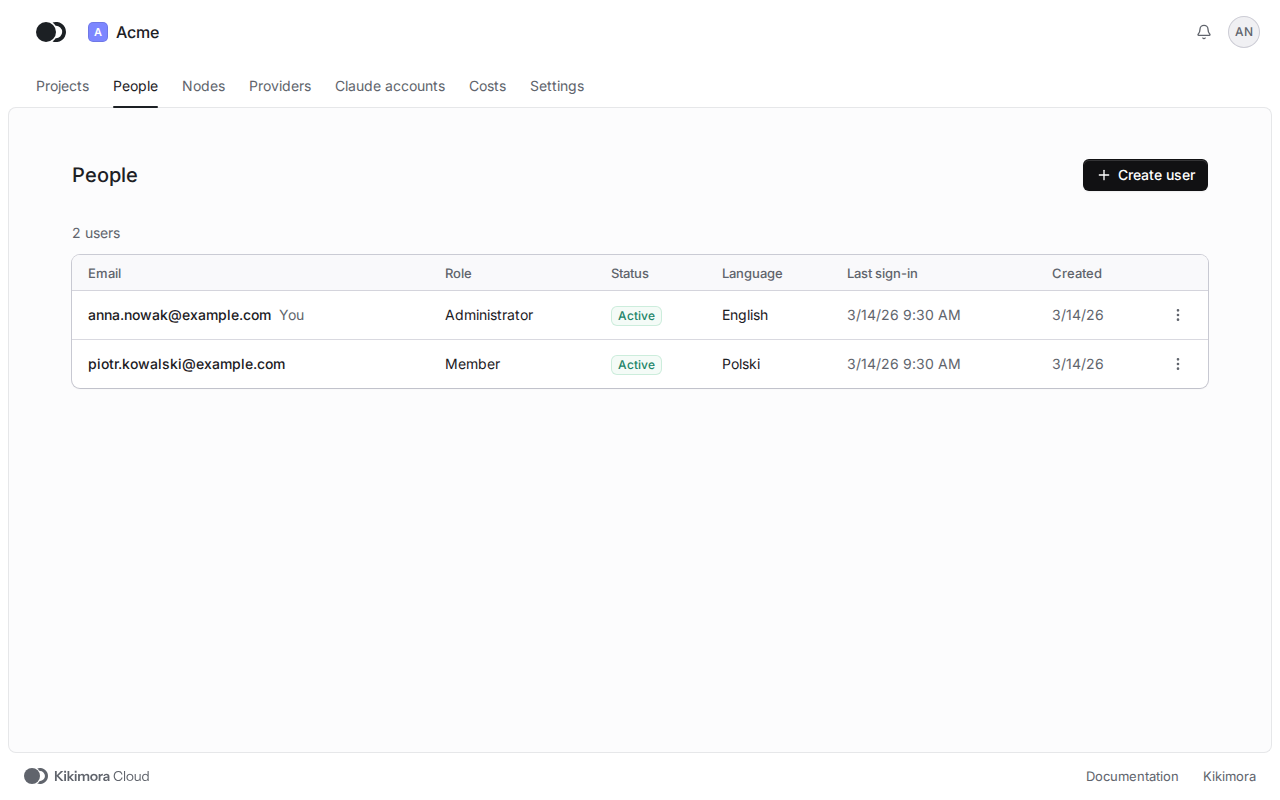
Click People in the header of the organization. The table shows the role, the status, the language and the last sign-in of each person. Password change pending marks someone who has not changed their temporary password yet.
Step 2: Create an account
Click Create user. Type the Email, pick the Role (Member or Administrator) and the Language the person sees the panel in. Leave the Initial password empty, and the panel generates a temporary one. Click Create user.
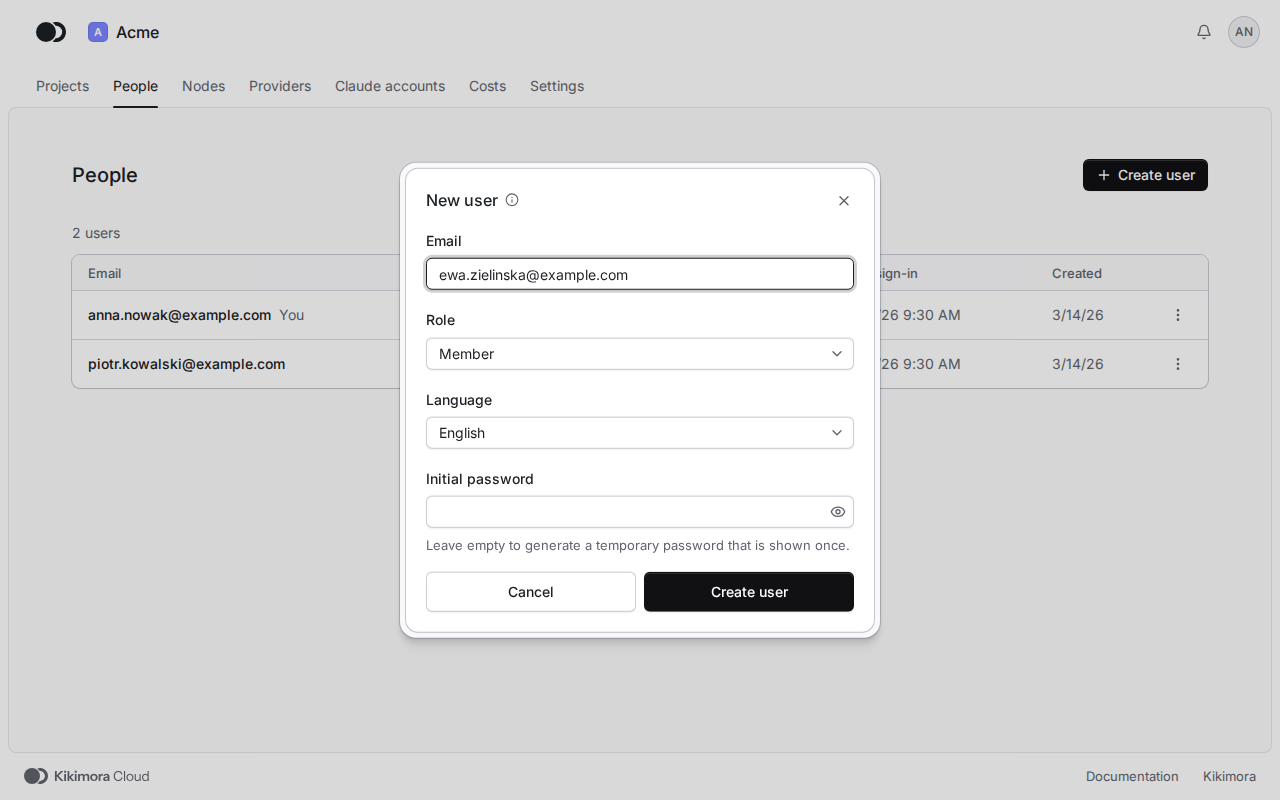
A member sees only the projects you add them to on the Members tab of a project. An administrator manages the people, nodes, accounts, costs and every project of the organization.
Step 3: Change the role, the password or the status
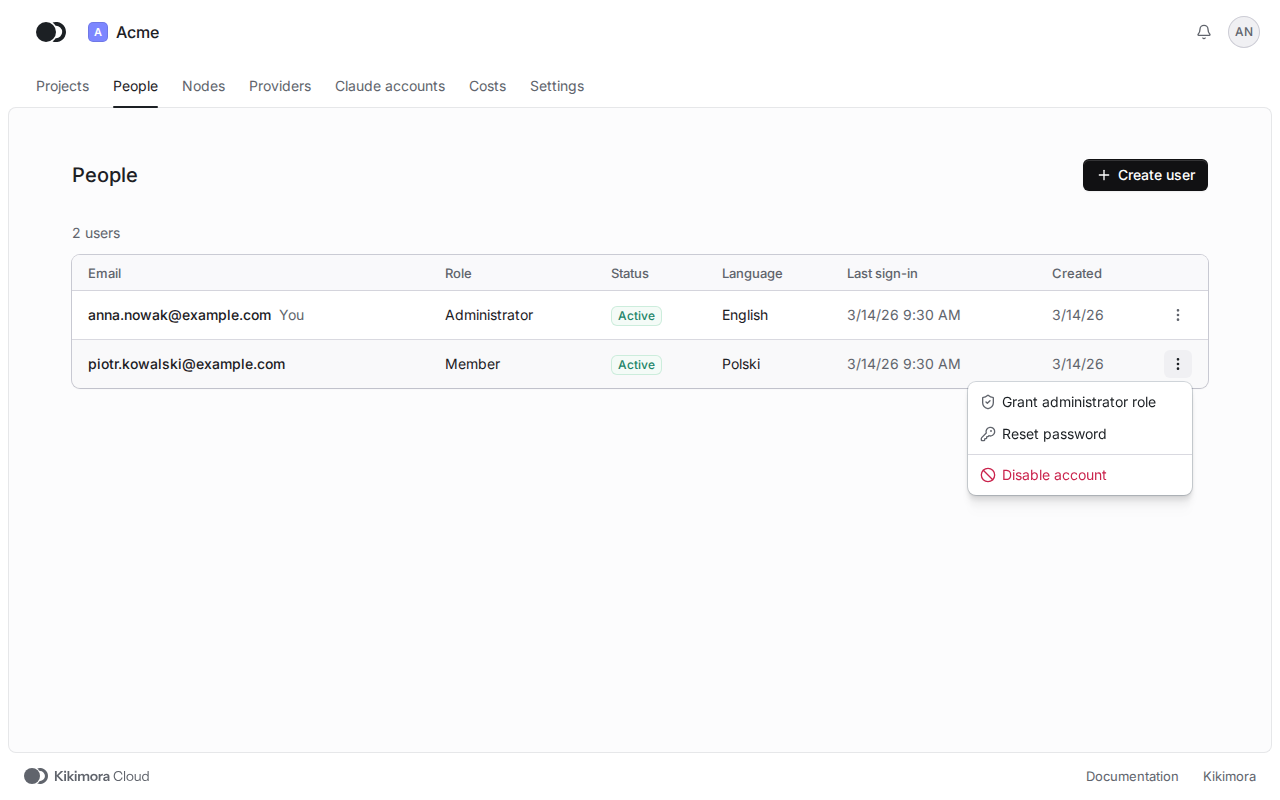
Open the menu of the person's row. Grant administrator role (or Revoke administrator role) changes the role, Reset password gives a new temporary password, and Disable account signs the person out at once and blocks their sign-in until you choose Enable account. You cannot change your own account here.
Step 4: Pass on the temporary password
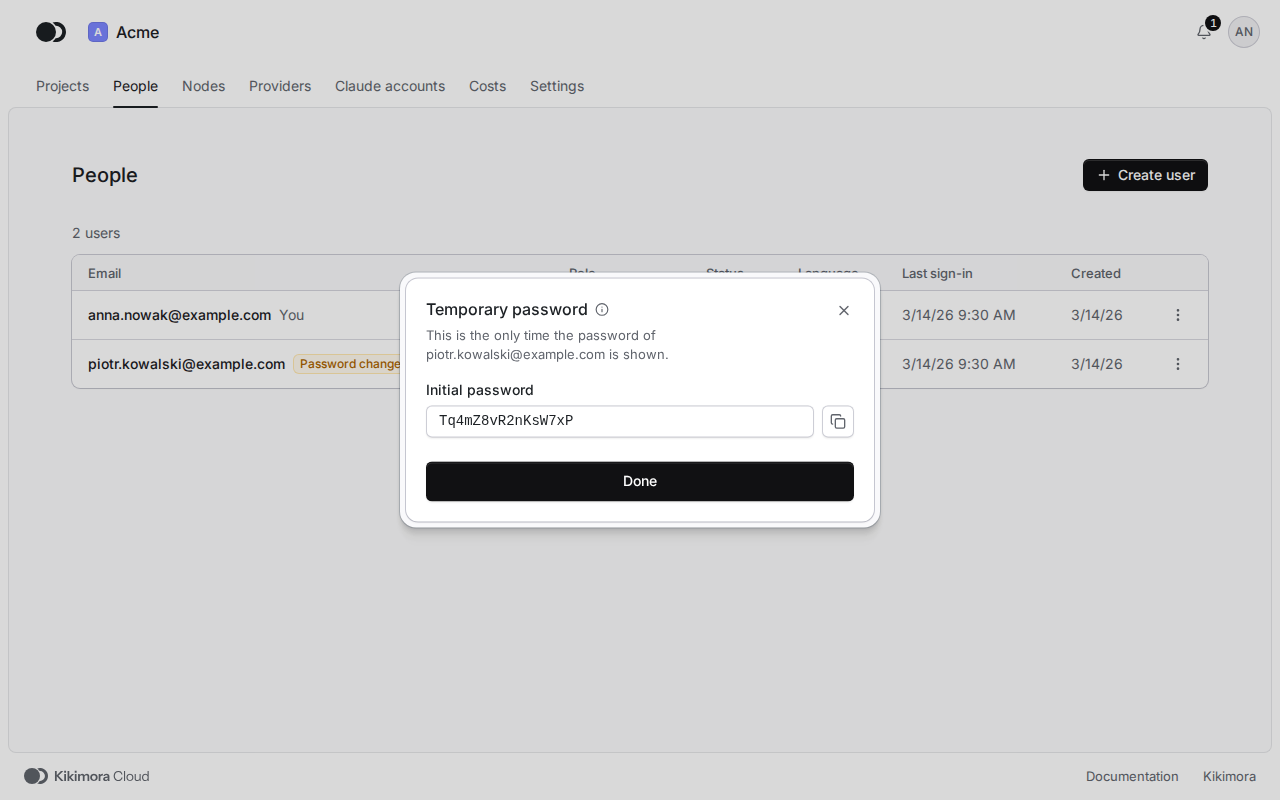
After you create an account or reset a password, the panel shows the temporary password once only. Copy it and pass it on to the person through a secure channel. They must change it at the first sign-in, and a reset signs out all their sessions.
Matches the panel at cloud.kikimora.dev.