PanelGetting started
Signing in and your password
An administrator of your organization creates your account in the panel. They give you its email address and a temporary password, which you change at the first sign-in.
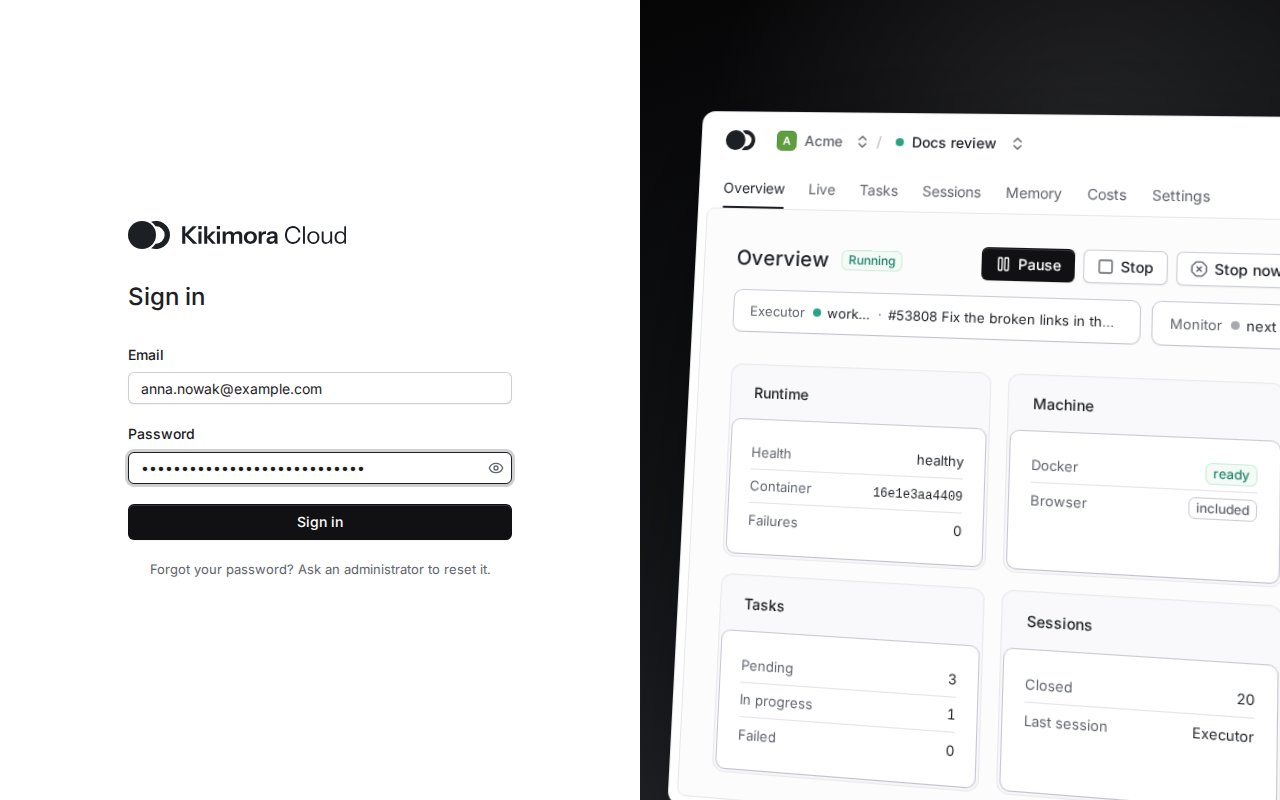
Step 1: Sign in
Open the panel, type your Email and Password, then click Sign in. If you forgot your password, ask an administrator of your organization to reset it.
Step 2: Change the temporary password
After the first sign-in with a temporary password, the panel opens the Change password page and lets you nowhere else until you change it. Type the temporary password as the Current password, the New password twice (12 to 128 characters), and click Change password.
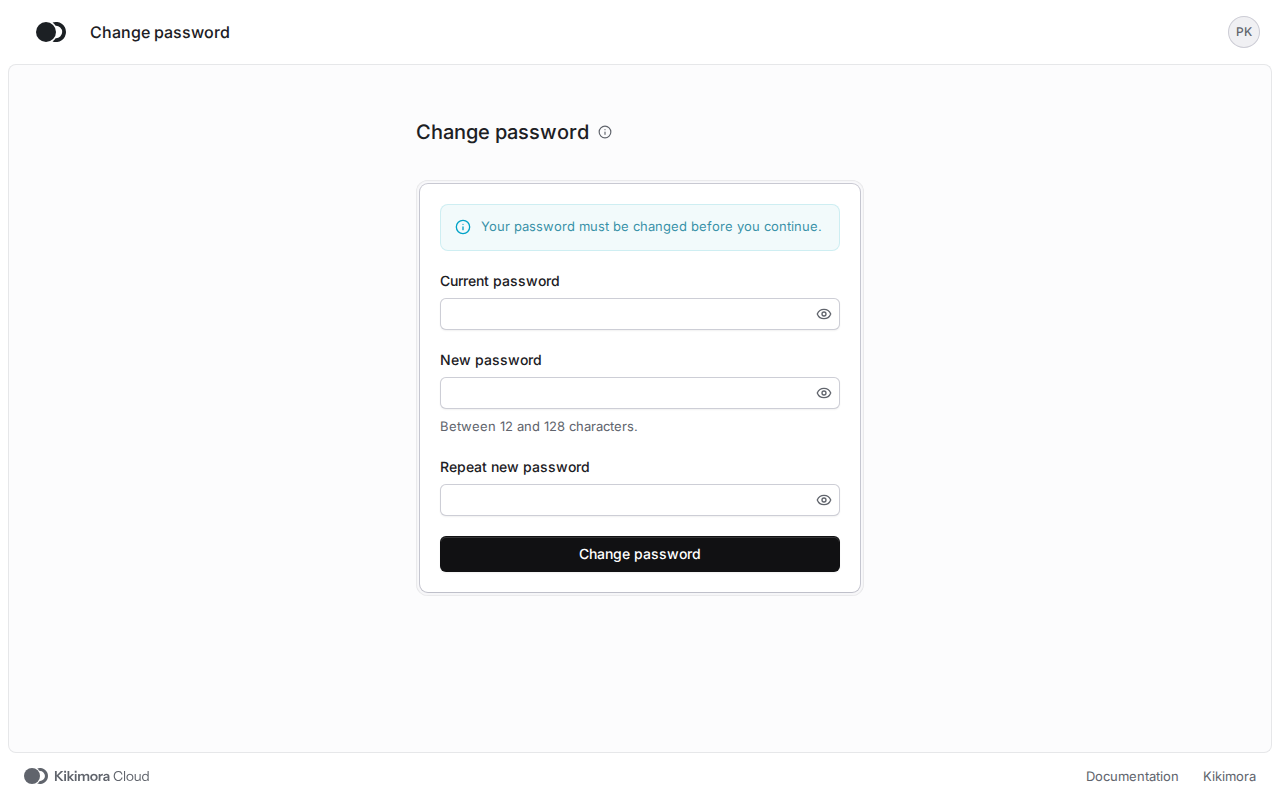
The same happens after an administrator resets your password: they give you a new temporary password, and you change it at the next sign-in.
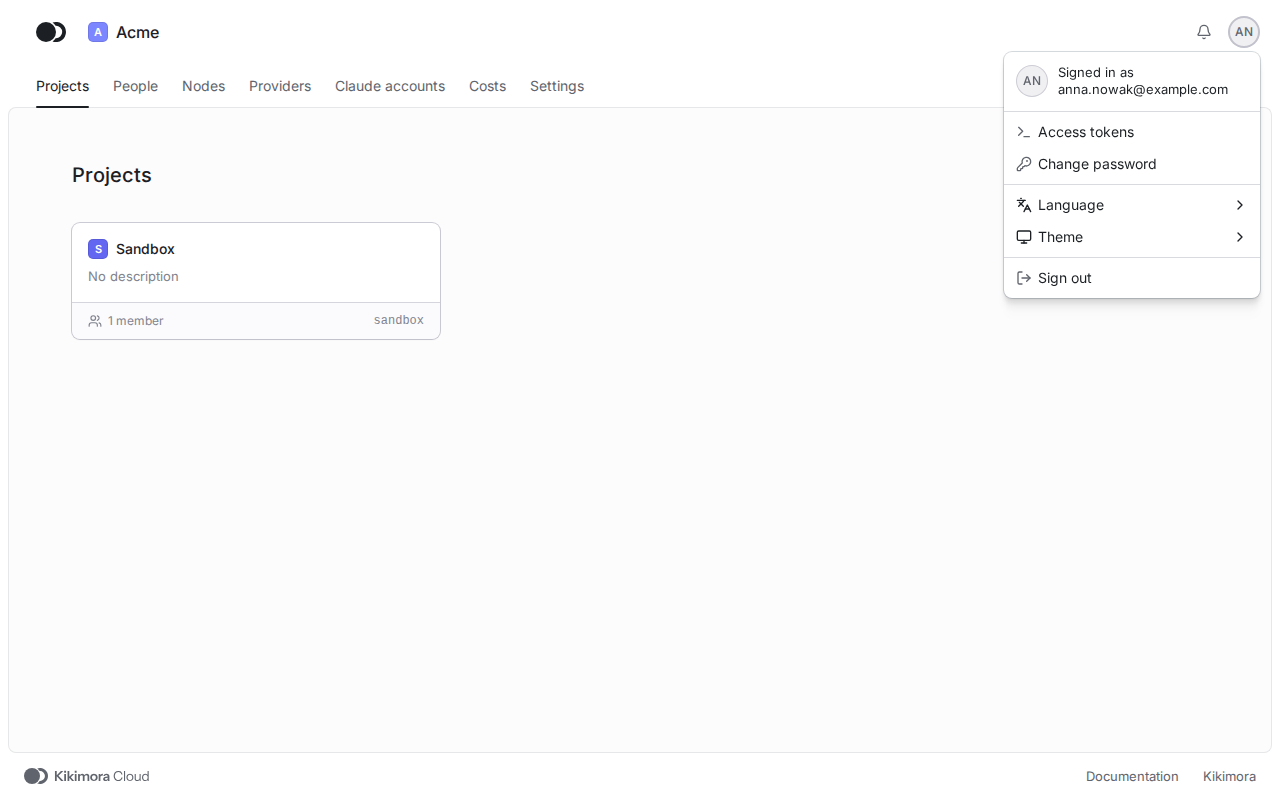
Step 3: Open the account menu
Click your avatar in the top right corner. The account menu leads to the Access tokens and Change password pages, switches the language and the theme, and has Sign out at the bottom.
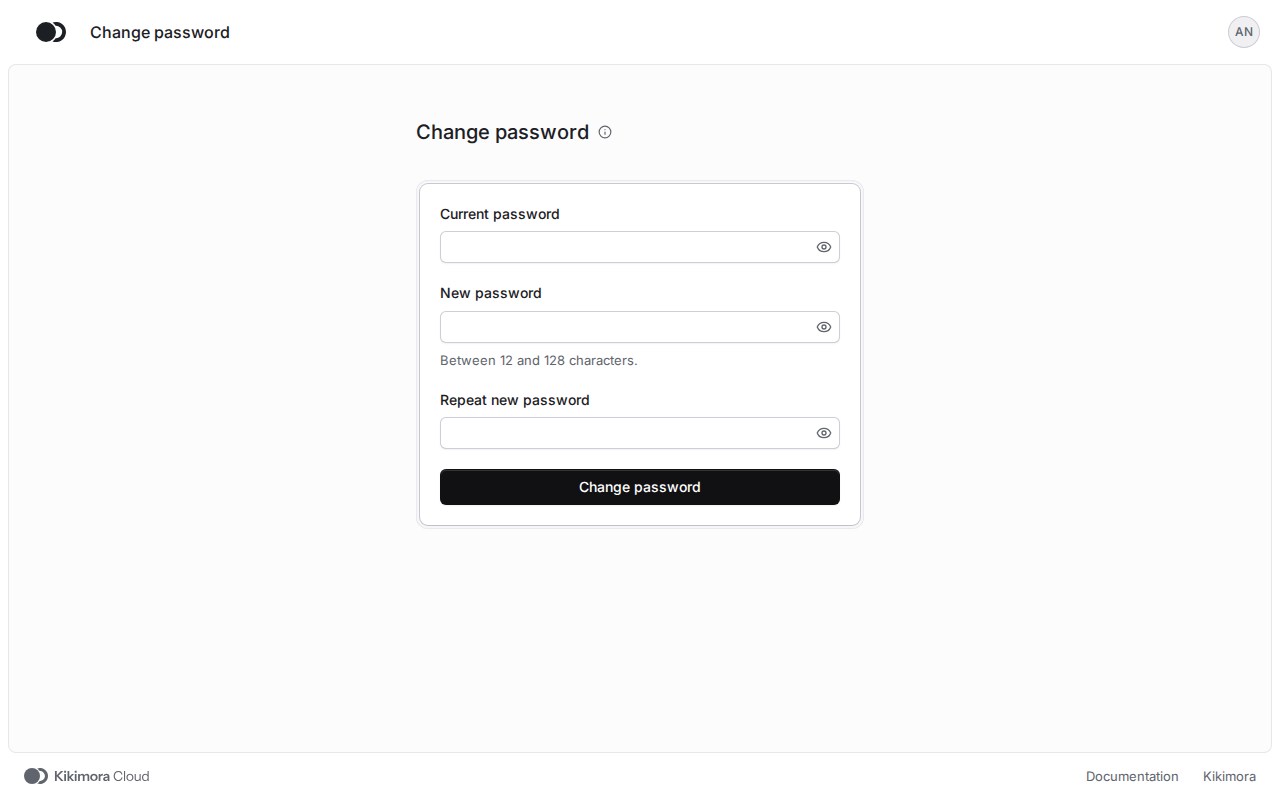
Step 4: Change your password
Choose Change password in the account menu, type your current password and the new one twice, then click Change password. After the change, all your other sessions are signed out.
To sign out, choose Sign out in the account menu. The panel then goes back to the sign-in page.
Matches the panel at cloud.kikimora.dev.