PanelOrganization
The page of a node
The page of a node shows its machine, capabilities, updates, session pools, metrics and agents. An organization admin splits the node into pools here, resizes a node on DigitalOcean and deletes the node.
Step 1: Open the node
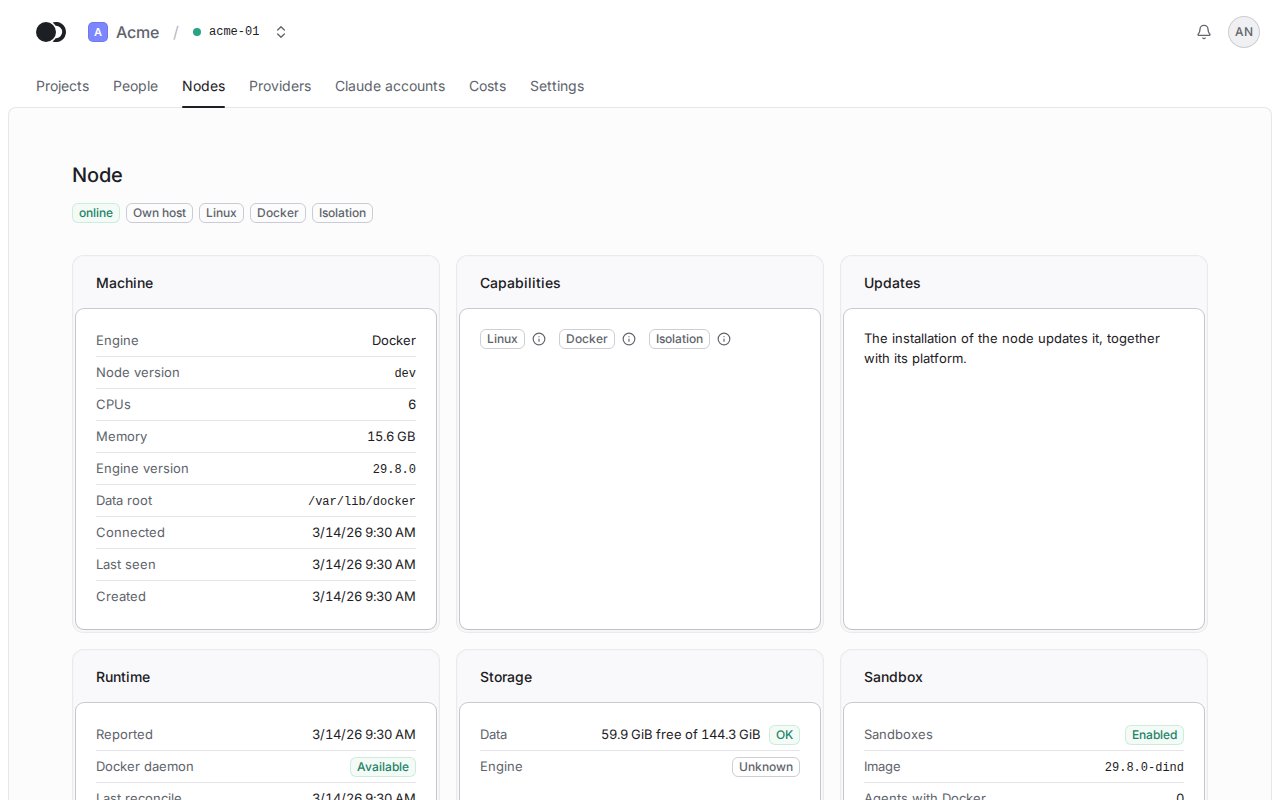
Click the name of a node on the Nodes tab. The header shows its state, its provider and its capabilities, such as Linux or Docker. The Machine panel gives the engine, the node version, the CPUs and the memory of the host, and Updates tells whether the node runs the release of its platform.
Step 2: Check the pools
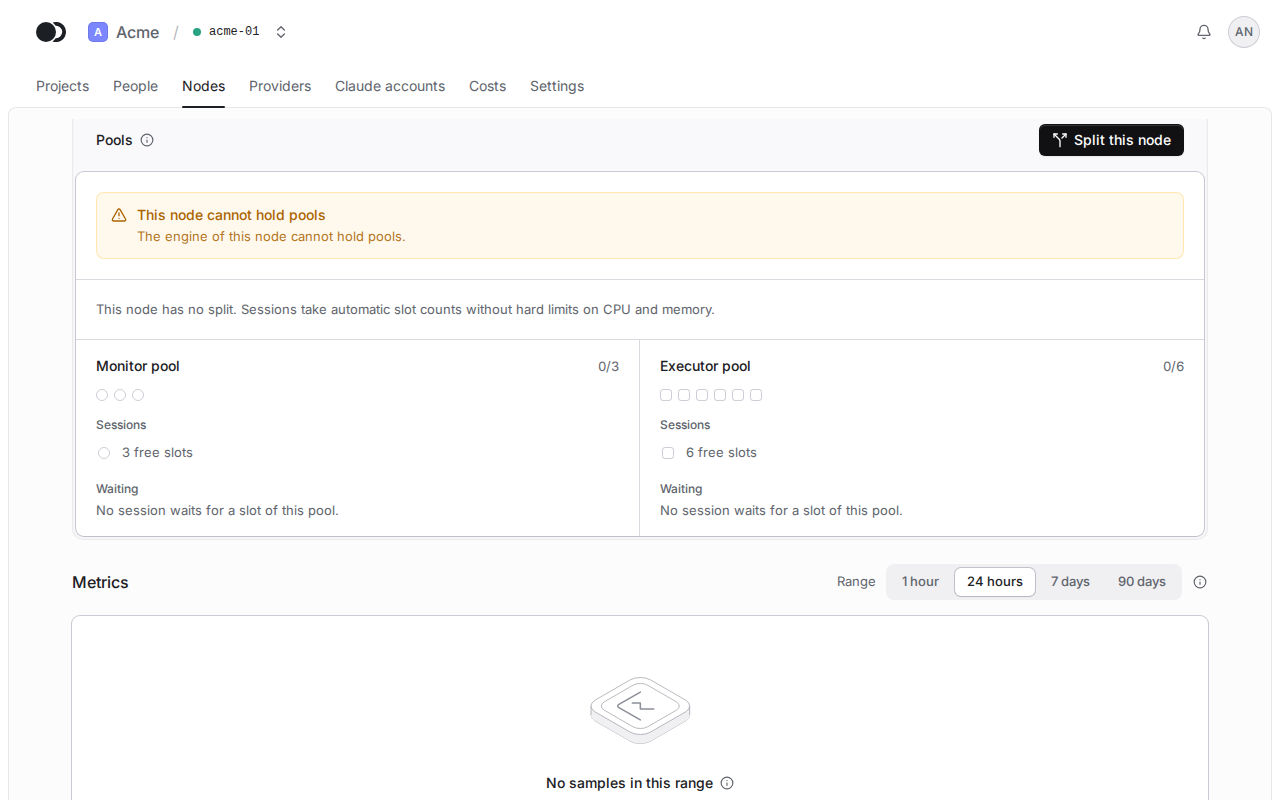
The sessions of the agents run in a monitor pool and an executor pool, and a slot holds one session. A node without a split takes automatic slot counts without hard limits on CPU and memory. Click Split this node to set them yourself.
Step 3: Split the node
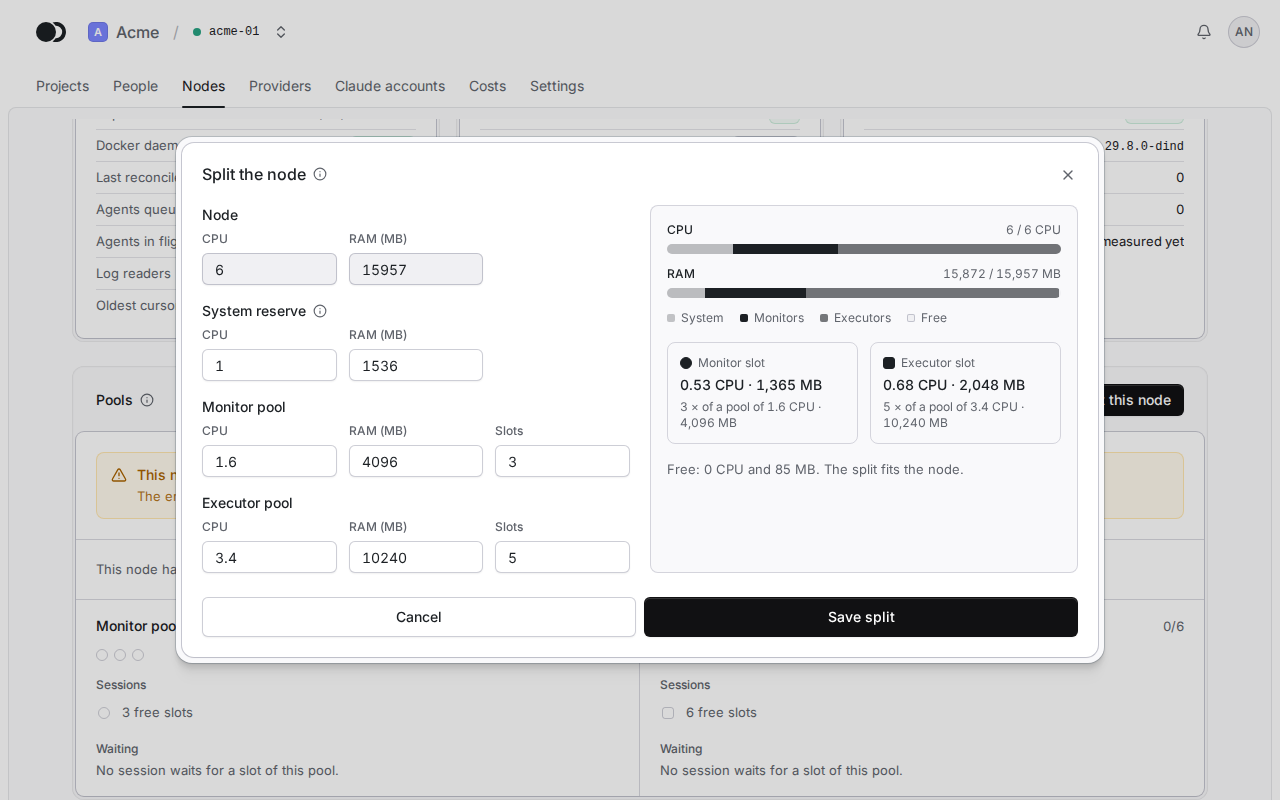
Set the System reserve aside, and give each pool its CPU, RAM (MB) and Slots. The preview shows how the split uses the node. Click Save split. The change applies to the next sessions without restarting agents. Remove split goes back to automatic slots.
A node on DigitalOcean also has a Droplet section with its region, size, volume and address. Its Resize button gives a larger droplet, a larger agents volume or both. A node grows, it never shrinks, and DigitalOcean powers the droplet off during the resize, so the agents of the node stop for a few minutes.
Step 4: Delete the node
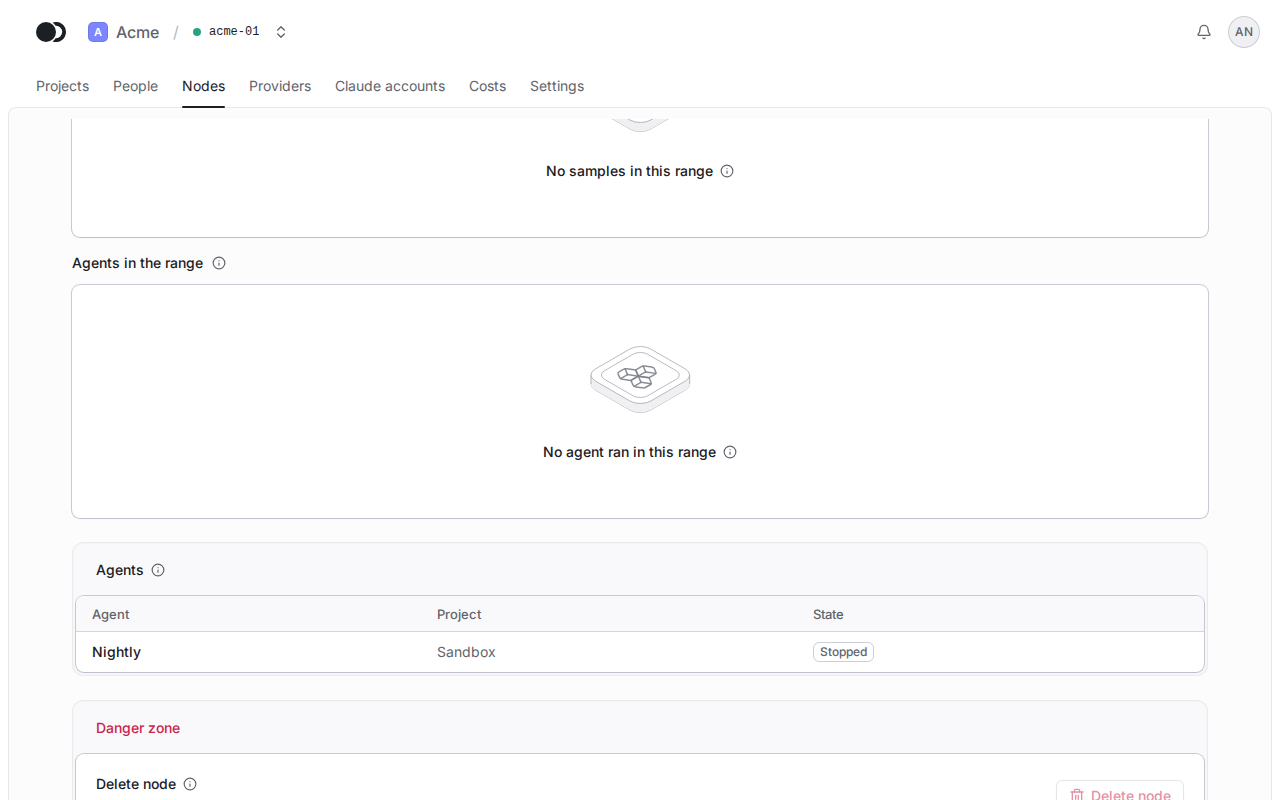
At the bottom of the page are the Metrics, the Agents of the node and the Danger zone. Delete node works only once no agent is placed on the node. The node leaves the organization for good, and on DigitalOcean the platform also deletes its droplet, volume and firewall.
Matches the panel at cloud.kikimora.dev.