PanelProject
Credentials of a project
The Credentials tab holds the GitHub, GitLab and Bitbucket tokens of the project. Agents clone the repositories and sign their commits with them. Claude accounts belong to the organization, and the project sets their queue in Settings.
Step 1: Open the Credentials tab
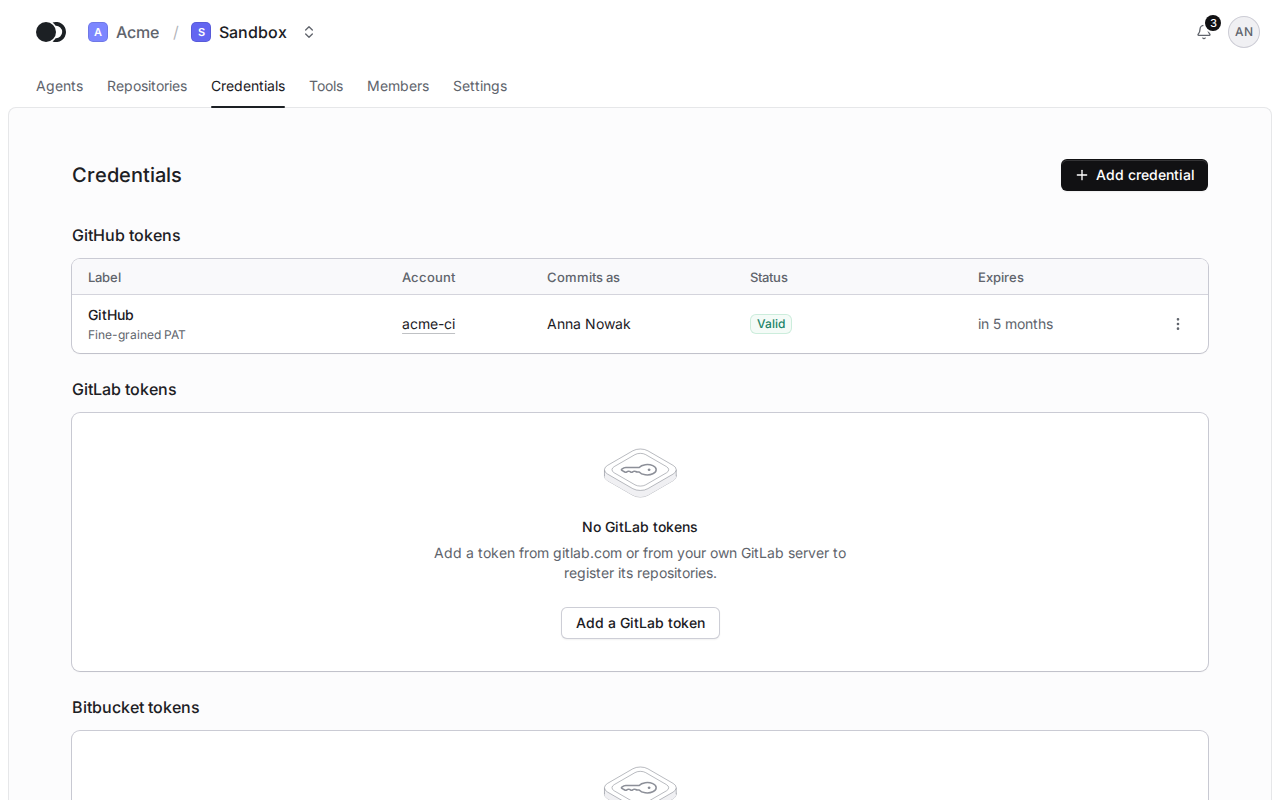
In the project, open the Credentials tab. The tokens are grouped by provider: GitHub, GitLab and Bitbucket. Each token shows its server, its account, the author of the commits, the status of its verification and when it expires.
Step 2: Add a token
Click Add credential and pick the Kind: GitHub token, GitLab token or Bitbucket token. Type a Label and paste the token under Secret. After you click Add credential, the platform checks the token with the provider.
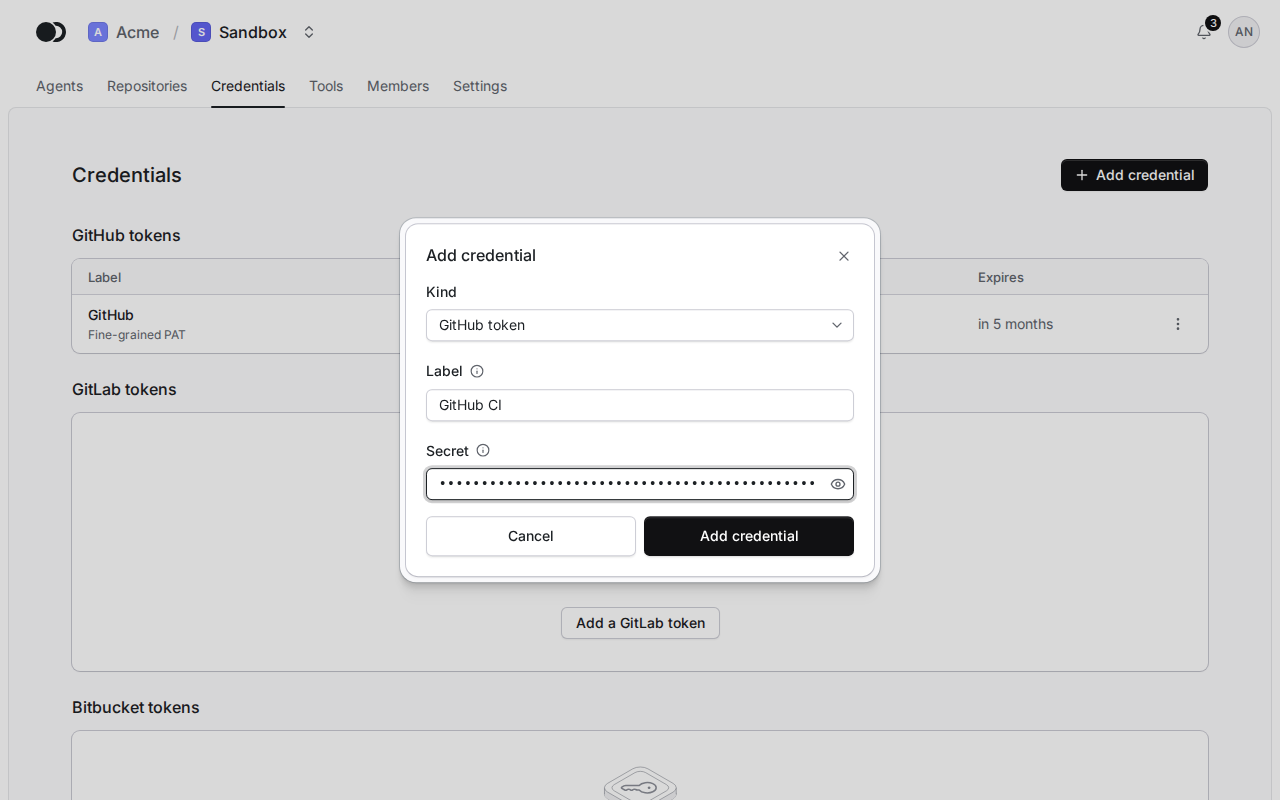
A GitLab or Bitbucket token also has a Server address: https://gitlab.com or https://bitbucket.org, or the address of your own server, such as https://gitlab.example.com or Bitbucket Data Center. A Bitbucket Cloud account API token also needs the Atlassian account e-mail. Under Signing changes you give the Name and the E-mail address the agent signs its commits with. GitLab reports them itself unless the account hides its e-mail address. Bitbucket does not, so always fill them in for its token.
Step 3: Rename, replace or delete
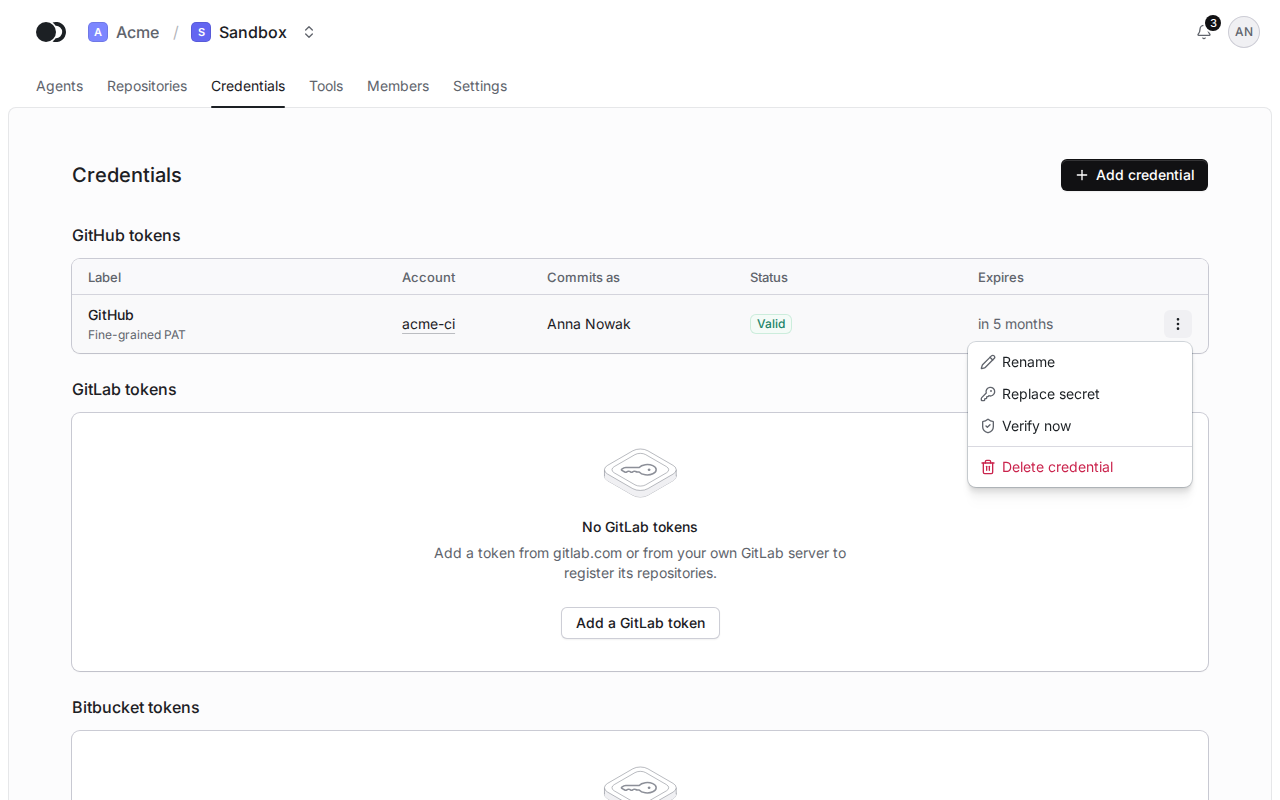
The row menu renames the credential, replaces the secret once the token expires and asks for a verification. A token without a commit identity is marked No identity and has the button Set identity under its verification status. An agent with such a token does not start until you give it. You delete a credential once no repository or agent uses it.
Matches the panel at cloud.kikimora.dev.