PanelProject
The page of a tool
On the page of a tool you change its settings, replace its key and decide which agents use it. A running agent gets the changes after a restart.
Who can do it
Any member of the project.
1
Step 1: Open the tool
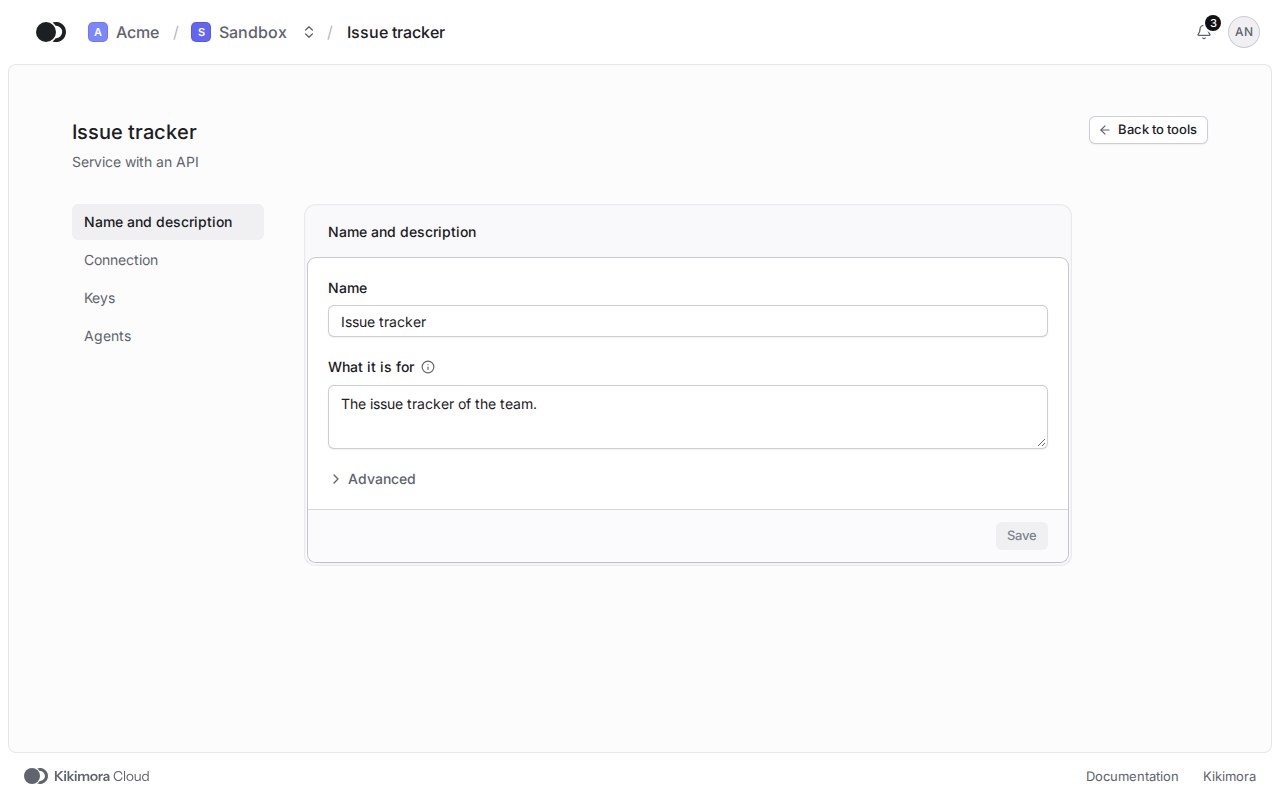
On the Tools tab, click the name of the tool or Edit in the row menu. On the left are the sections Name and description, Connection, Keys and Agents.
2
Step 2: Replace the key
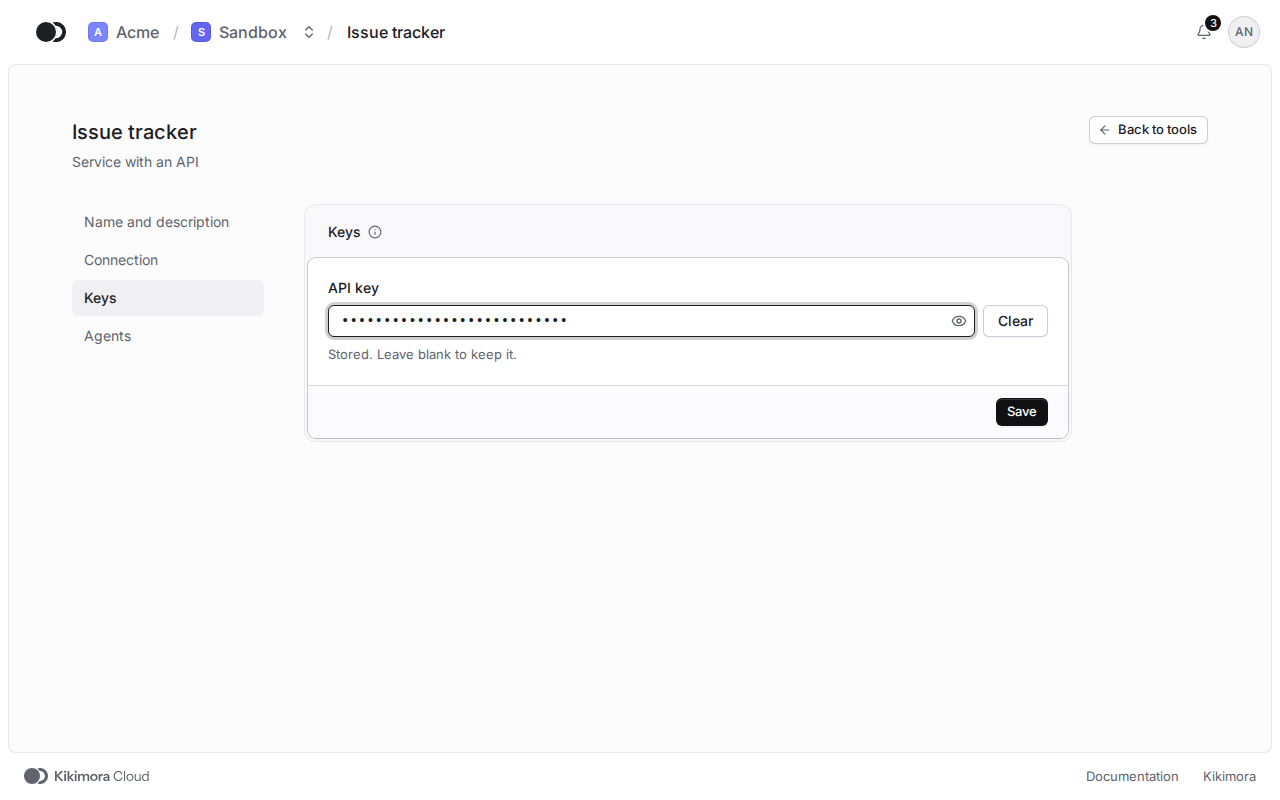
In the Keys section, type the new key and click Save. Leave the field blank to keep the stored key.
3
Step 3: Pick the agents
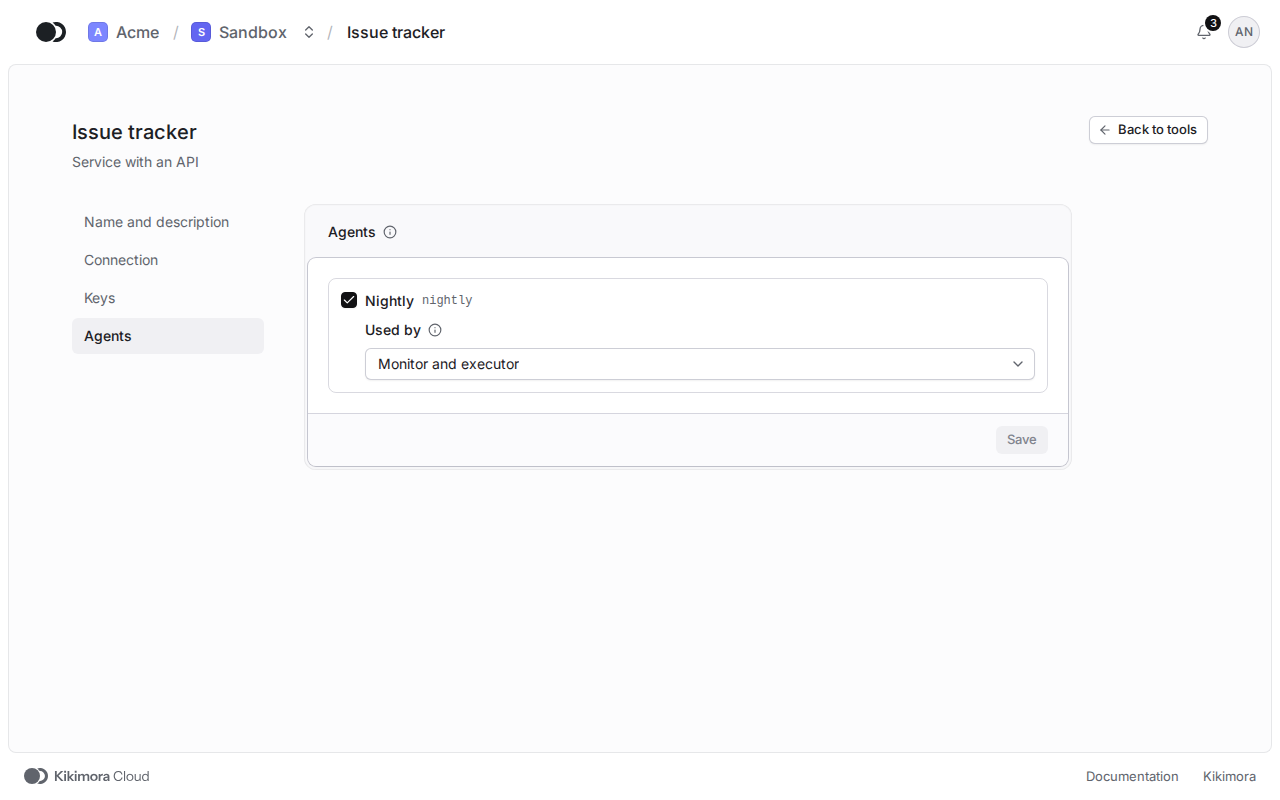
In the Agents section, tick the agents that use the tool and under Used by pick Monitor only, Executor only or Monitor and executor. Click Save.
4
Step 4: Copy or delete
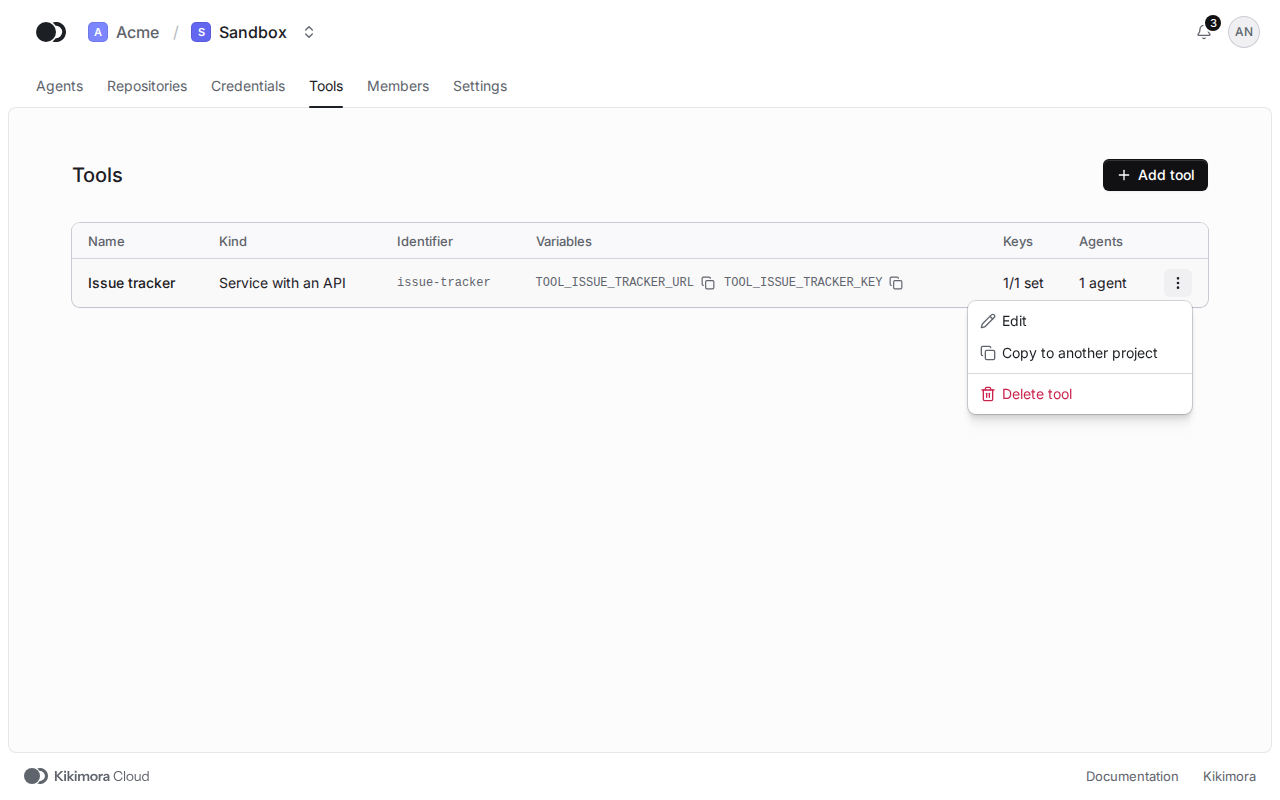
The row menu on the Tools tab copies the tool to another project without its keys (an organization admin only) and deletes a tool no agent uses any more.
Matches the panel at cloud.kikimora.dev.